Install a DHCP Server

By | March 6, 2023

There are times when you need to run your own DHCP server. For me, this was needed to add to my laptop so I can program IP security cameras with my USB Ethernet adapter attached. The software that typically comes with security cameras is total crap with a bad Chinese translation layered on top and is usually for Windows only. It is just easier to connect the cameras to a DHCP network and login than use some clunky badly written Windows-based application. Here is how I installed and configured a DHCP server for my laptop.

Open a shell prompt and execute the command: sudo apt install isc-dhcp-server.
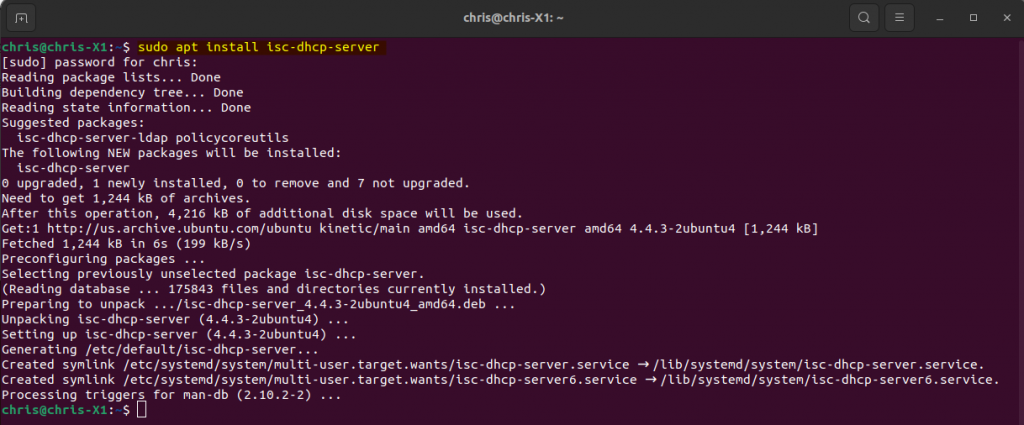
sudo apt install isc-dhcp-server.

Now, I run ip a to list all the network adapters and names. I found my USB adapter easily.
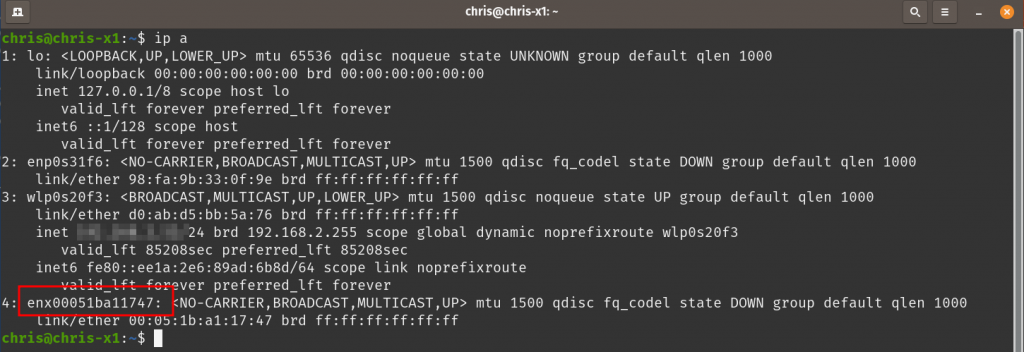
Use, “ip a”, to list the network adapters and info.

Open the /etc/default/isc-dhcp-server config file and add the interface name of the USB adapter. This defines the network adapter that will be dishing out DHCP IP addresses.
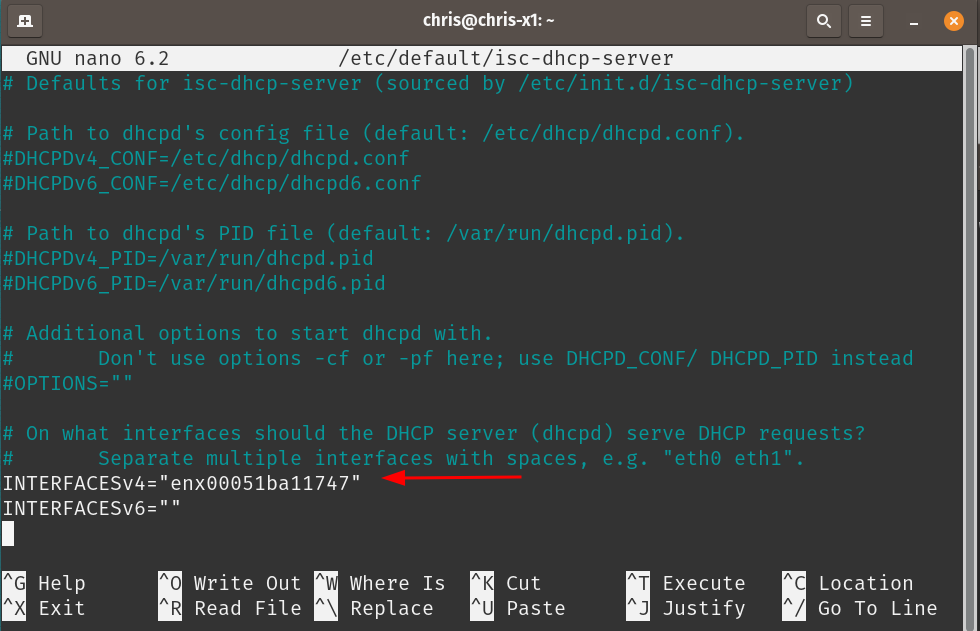
/etc/default/isc-dhcp-server config file.

Now we set an IP range for the DHCP server. I usually keep this really small between 10 and 20 IP addresses for convenience. I usually set the starting IP address one octet higher than the IP I set on the USB adapter. Below, you can see I entered, “192.168.10.1” as the IP address of my USB network adapter, then the DHCP range I set at .2 through .10. Set the subnet mask and since this does not need DNS, I just enter a bogus address of the laptop for domain-name-servers.
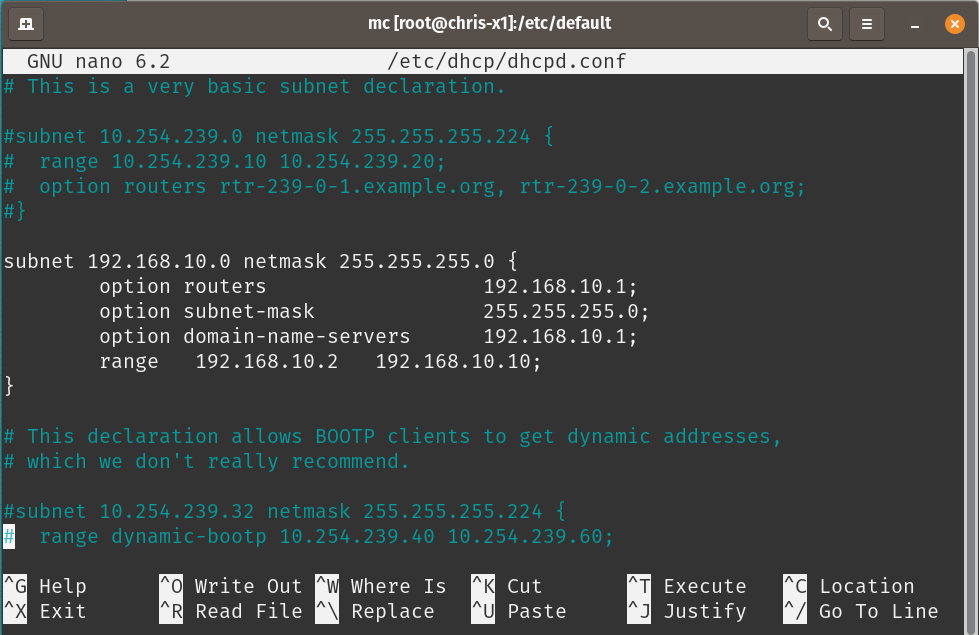
Set the network adapter info and IP range here.

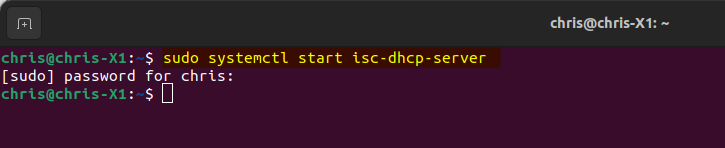
Restart the DHCP server service.

Now I connect the IP POE camera to an injector which then connects to my USB adapter.
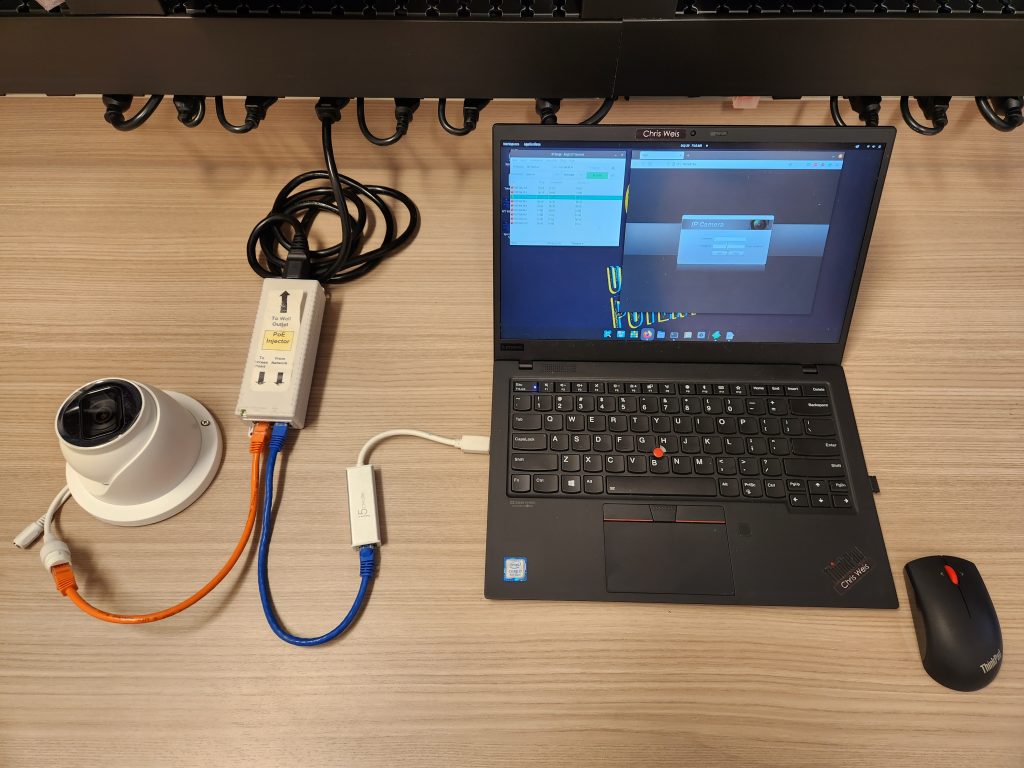
Laptop with USB network adapter, POE injector, and camera connected.

I use Angry IP Scanner to search and find the camera.
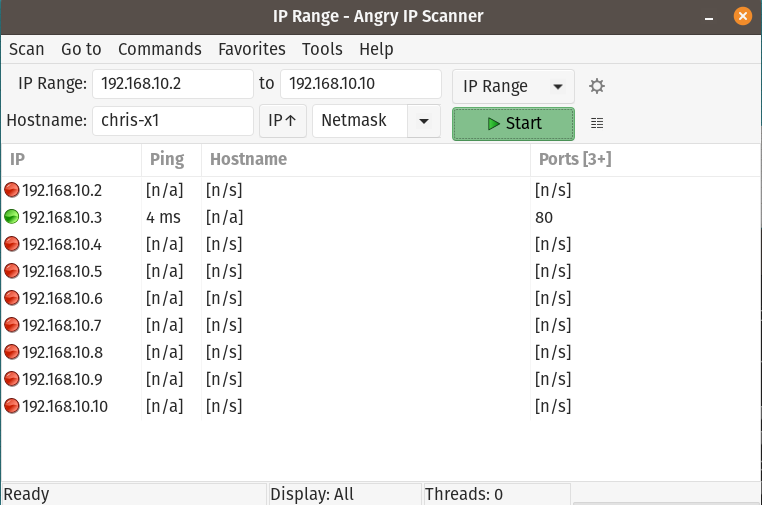
Enter the IP range in Angry IP and tell it to scan.

I now navigate to the IP address found and am able to sign in and configure the IP camera.
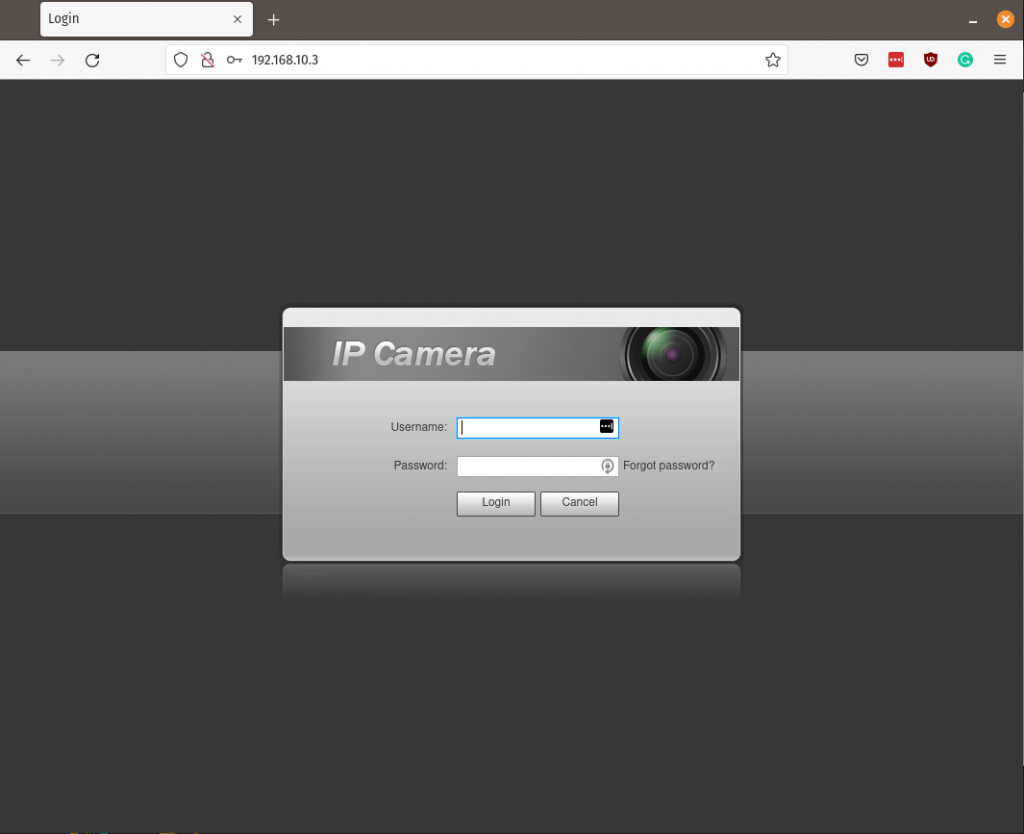
Camera responding at IP addressed issued from the DHCP server.

After configuration, live image working.
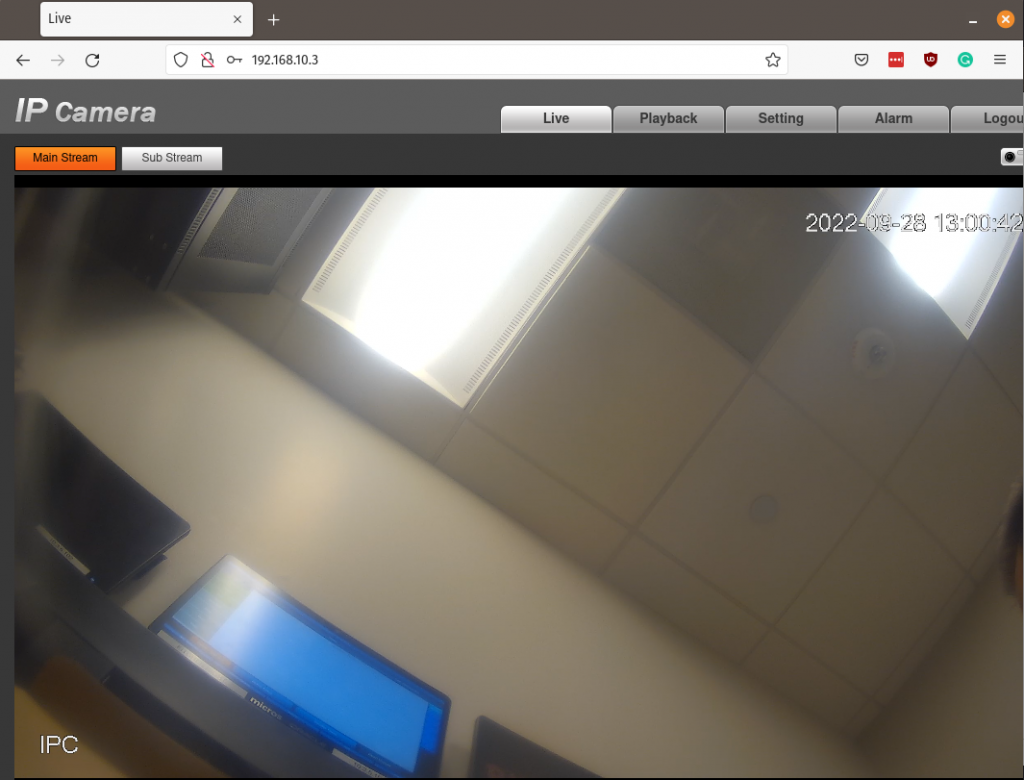
Successfully configured camera.

Firefox telemetry

By | February 20, 2023

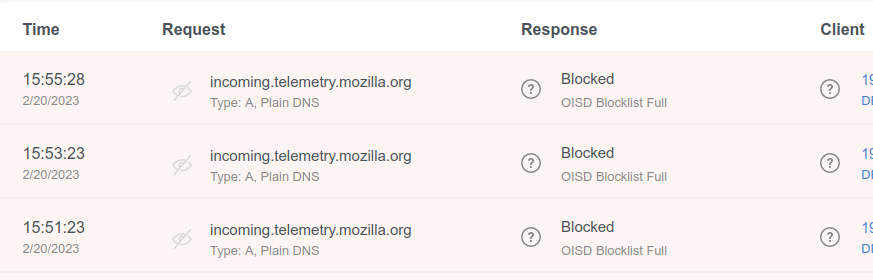
Was looking at my Adguard for home server dashboard and I noticed the blocked links for Mozilla Firefox is sending telemetry data. I did some looking and Firefox data is mainly to help it make a better product but some products go too far. Either way, I want to disable it.

Adguard blocking Firefox telemetry

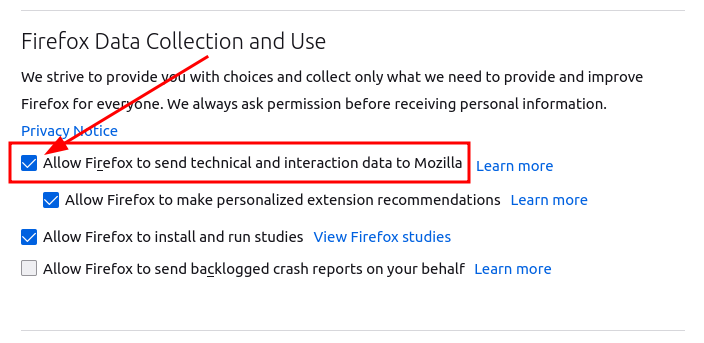
Firefox doesn’t hide that they are doing this, and posted an article on how to disable it HERE. Basically, go to Settings / Privacy & Security, and scroll down until you see, “Firefox Data Collection and Use” section. Uncheck the option that says, “Allow Firefox to send technical and interaction data to Mozilla”.

Uncheck the option that says, “Allow Firefox to send technical and interaction data to Mozilla”.

After you uncheck the option, you will see the below message. All good now.

Good.

Phishing emails

By | November 8, 2022

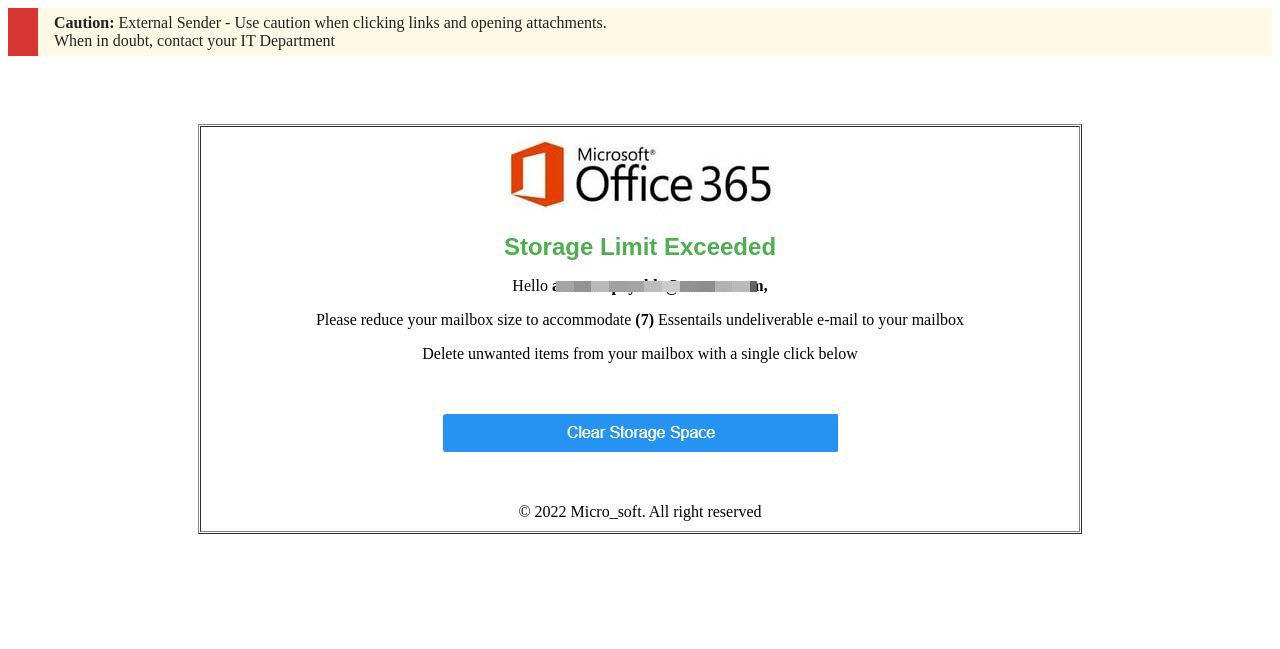
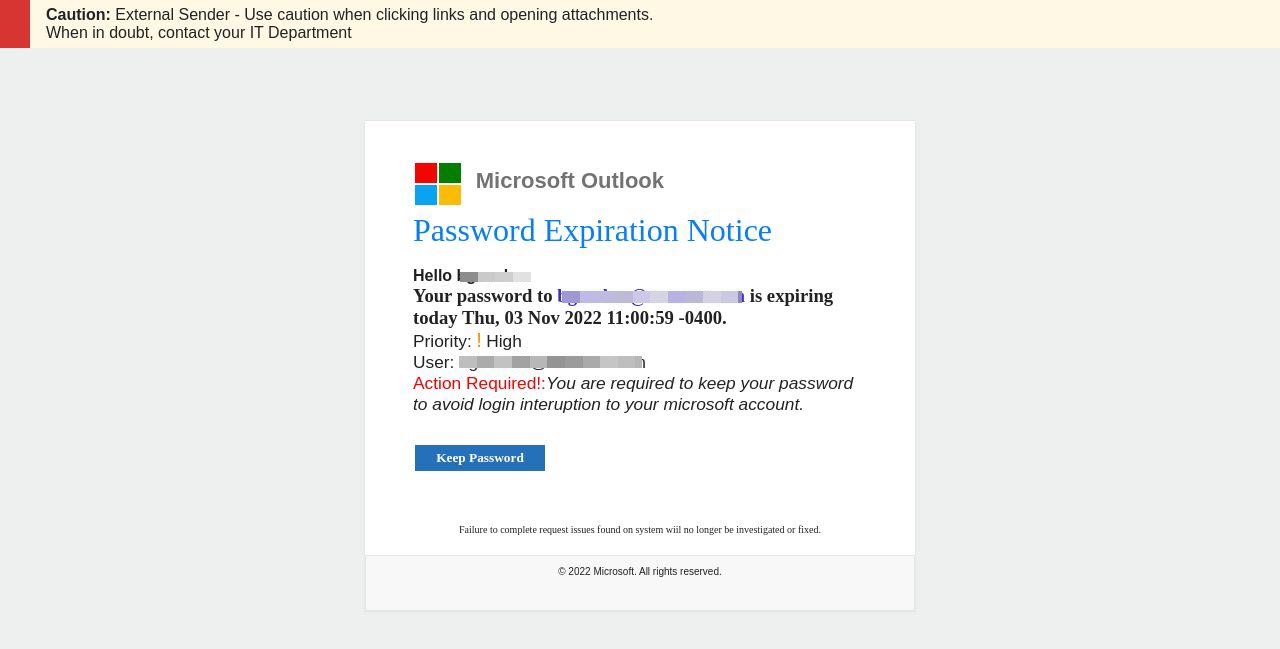
It is amazing how phishing emails are becoming more sophisticated. We have recently added a product called SlashNext to help protect our environment from phishing emails. It has been doing a fantastic job of catching emails that passed every other detection method. Below are six samples of the emails captured and blocked from going to the recipients.

SlashNext uses a method of analyzing the links within an email (Or website if you have browser protection also). Thus, this provides protection that most anti-spam and email protection systems, miss.

O365 prompting for an alternative email address

By | October 31, 2022

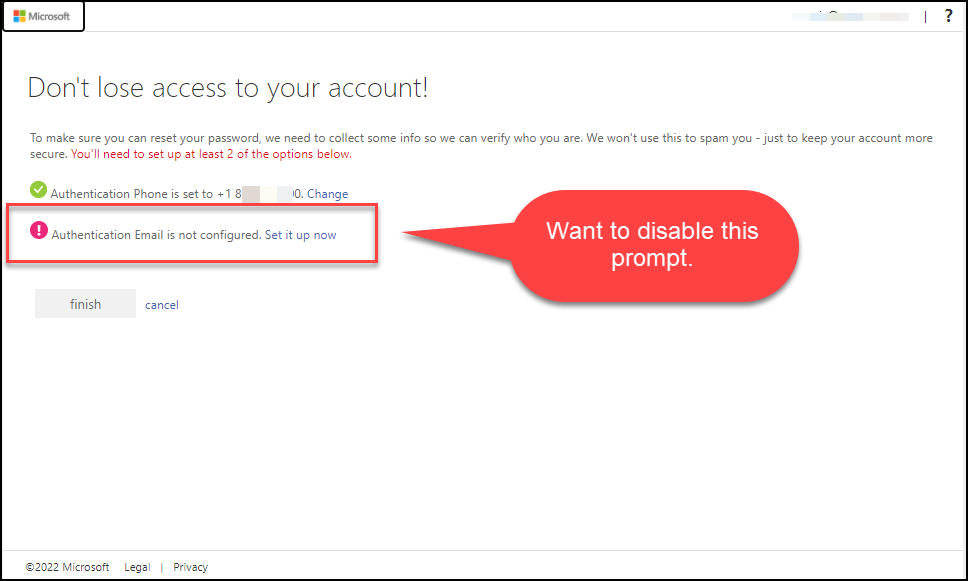
Recently, O365 started prompting users in my organization during sign-in to add an alternative (Authentication verification) email address. This is not an option we turned on, nor is it an option I wanted to be enabled. If the user needs help resetting their password or having issues signing in, our policy is for them to contact our helpdesk.

Alternative email / Authentication email prompt I never asked for.

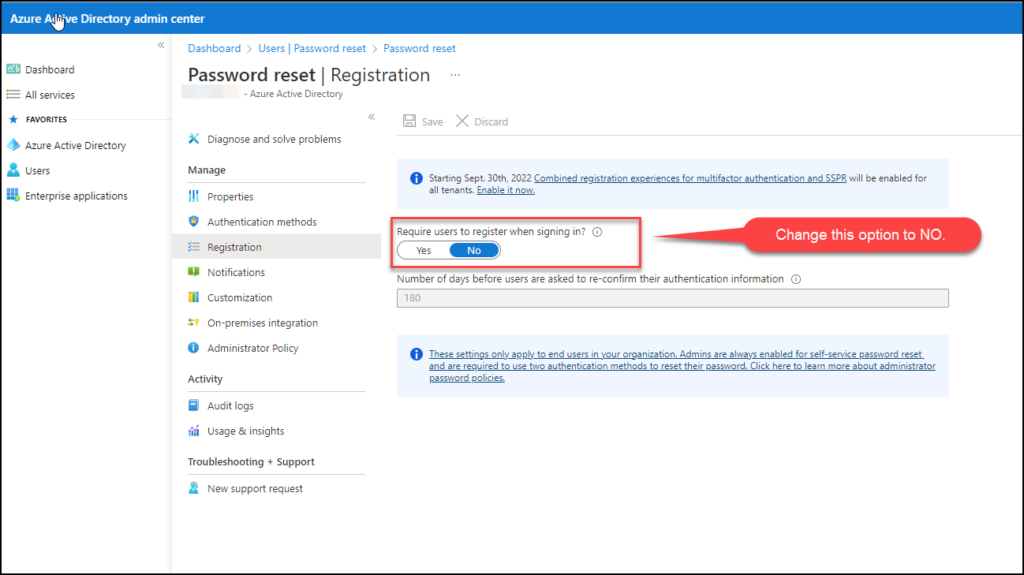
To remove this, you will need to go into your admin portal. Then go into Azure Active Directory, then USERS, then REGISTRATION. Change the option, “Require user to register when signing in“, to NO.

Select NO for this option.

Now your users will no longer get prompted to enter an alternative email address for authentication verification. Our policy is that the IT department should be contacted.