Several months ago, I switched companies that I work for. This morning, I am working from home and wanted to start Microsoft Teams flatpak on my Pop-Os! desktop and found it would not let me sign in with my new email address.
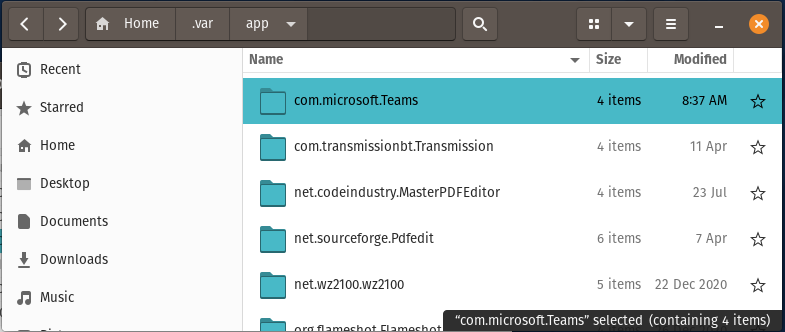
The application is set for a single user and I could not find a way to, “sign-out”. My solution was to go into the /home/.var/app directory and rename the existing com.microsoft.Teams directory to something else, then restart Teams. This worked. A new config directory was created, I was able to sign in with my new credentials and all is good.
I renamed the existing folder to XXcom.microsoft.Teams andeverything is good now.
When I first started at my current job I needed to find a solution that would help me get an inventory of all my assets, assist me in managing and patching as well as some kind of remote access. One of my needs was to find something that would be cost-effective for my organization while providing a great toolset to help me lasso all my endpoints together. I discovered Action1.
Action1 has turned out to be a great tool in gathering information about my endpoints, being able to finally have a managed patching solution where I can specify what patches to approve and when to let them be installed, and allows me to do a whole set of other functions such as remote script executions, custom package deployments, scheduled actions based on conditions, and nice remote desktop access.
The price for Action1 is great. It is free for 100 endpoints. Since I am using quite a bit more than that, I have a paid subscription that is extremely affordable. I now have all my endpoints being patched consistently, supported all via the same method, and software deployments and reporting all handled from the same place. Action1 is a lifesaver.
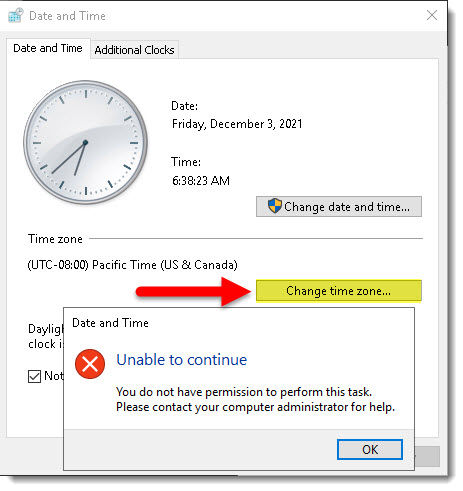
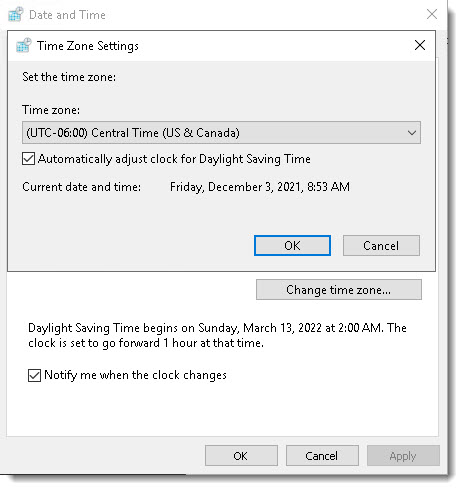
I was having problems changing the timezone on a new domain controller today. I am the admin, but I still could not change the timezone region. I kept getting the following message “Unable to continue. You do not have permission to perform this task. Please contact your computer administrator for help.” But again, I am the administrator.
Seriously? I cannot change the timezone?
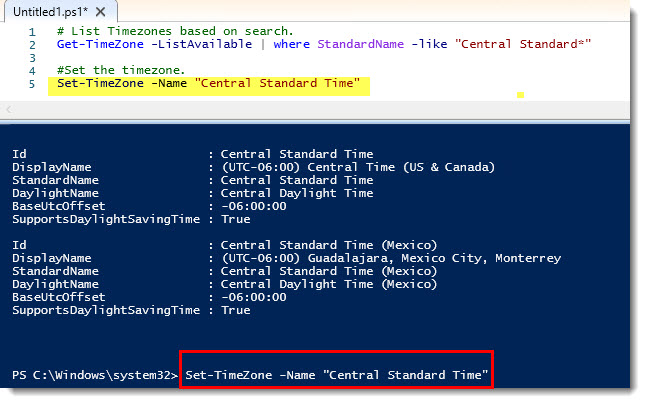
My fix was to use Powershell using the Set-Timezone command. I ran the command
Set-Timezone -Name “Central Standard Time”
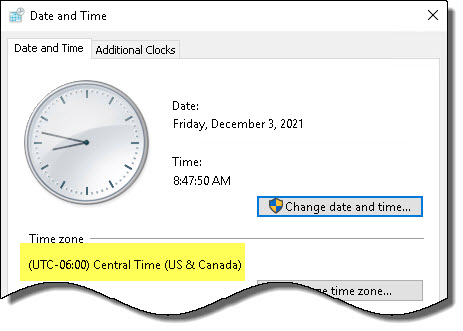
And now the correct timezone is set. I chalk this up to some goofy windows thing.
Correct timezone is now set.
I did later find out I could also run timedate.cpl as Administrator and be able to change the timezone via the GUI I was blocked from originally. Microsoft Windows can be so frustrating at times.
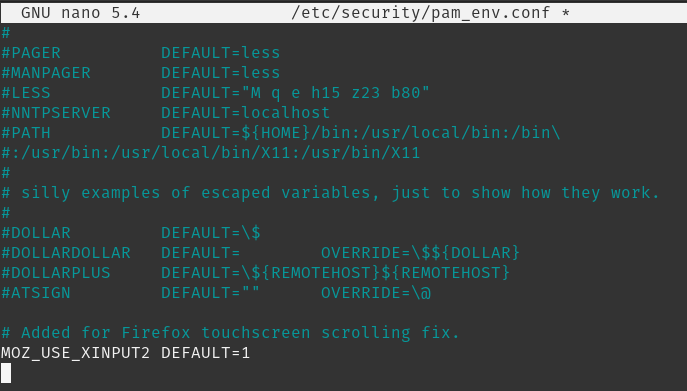
When using Firefox on a touchscreen enabled laptop, I noticed that scrolling only worked using the scroll bar and I could not zoom or scroll like is done with mobile devices. I discovered a fix for this by editing the /etc/security/pam_env.conf file and adding a new environment variable.
MOZ_USE_XINPUT2 DEFAULT=1
Save, then reboot. Zoom and scrolling now work as expected on the laptop touchscreen.