
Tough question.

Noticed recently when I am in the bash shell, if i type a command incorrectly I have been getting an error that is not part of the command I was entering, but one that seems to be from the shell not knowing how to respond to an incorrect command.
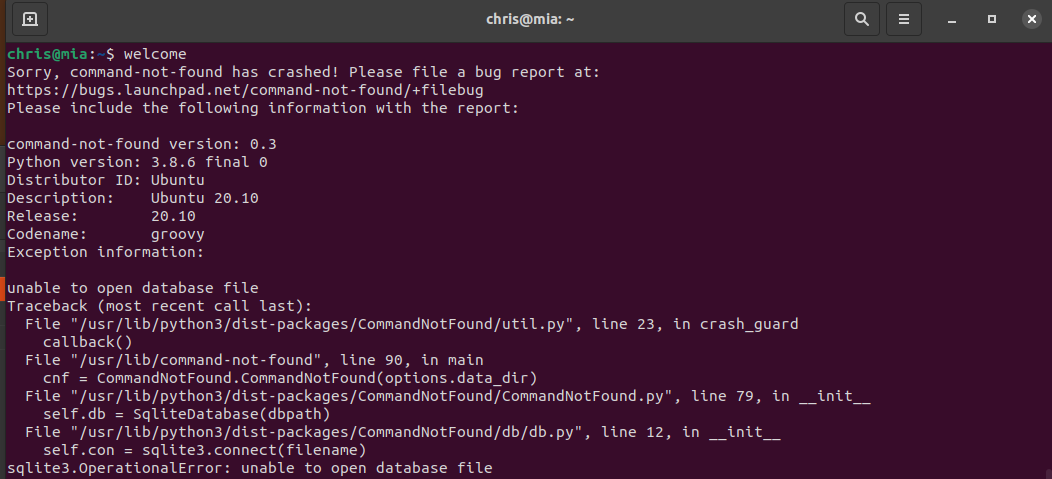
After doing some searching, I found that this appears to be a permissions issue after upgrading. By entering the following command repaired my issue: sudo chmod ugo+r /var/lib/command-not-found/commands.db*

All good now!
Setting up remote VNC access in Pop! OS is quite easy, but one option I wish they would make is to disable the require-encryption option. Pop! OS uses Vino for VNC access but most other clients do not support the encryption option that Vino uses.
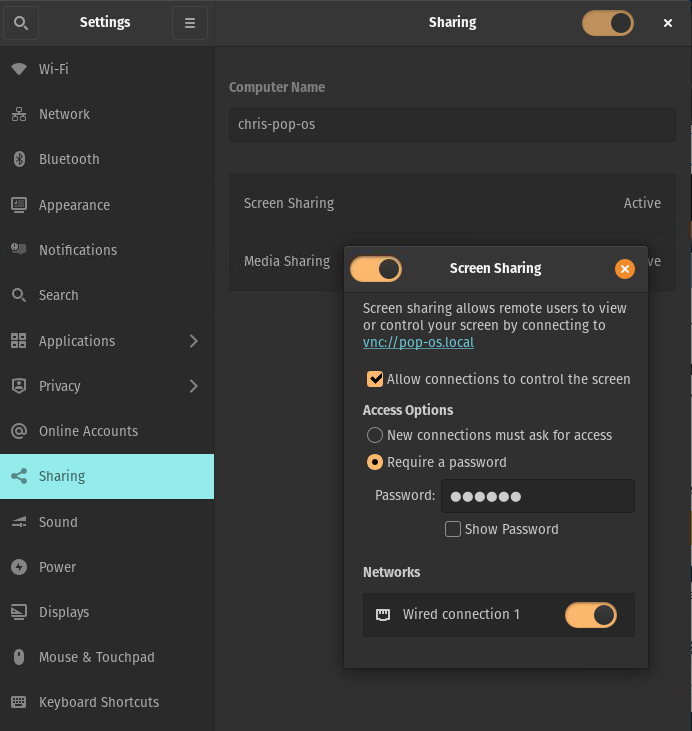
To Configure, go into Settings / Sharing. Enable options as shown below. And, don’t forget to add a password for access.
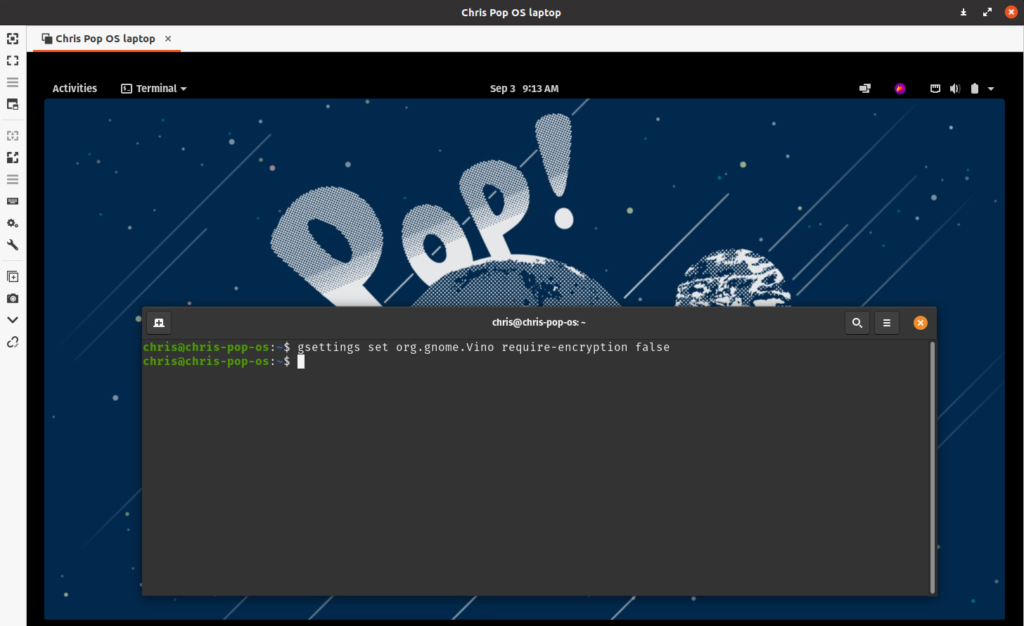
Now open a terminal shell and run the following command to disable the require encryption: gsettings set org.gnome.Vino require-encryption false

Now open your VNC client on another machine, and enter the hostname or IP of the PoP! OS machine, and sign in.

My old Logitech mouse finally needed to be replaced. It has lasted me almost 10 years. I just picked up a Logitech M705 wireless marathon mouse from Office Depot for 29 dollars. Just a bit smaller than I care for, but a very nice mouse. Only problem; When I use this mouse on Linux, the mouse wheel scrolling is backwards. To fix, use the xinput command.
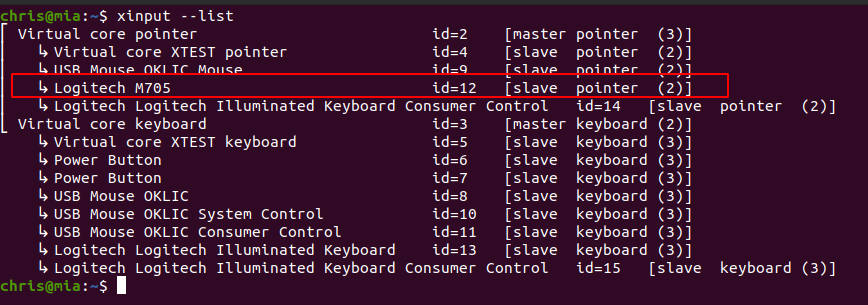
From your terminal use the xinput –list to show all devices. I found my mouse as device 12.
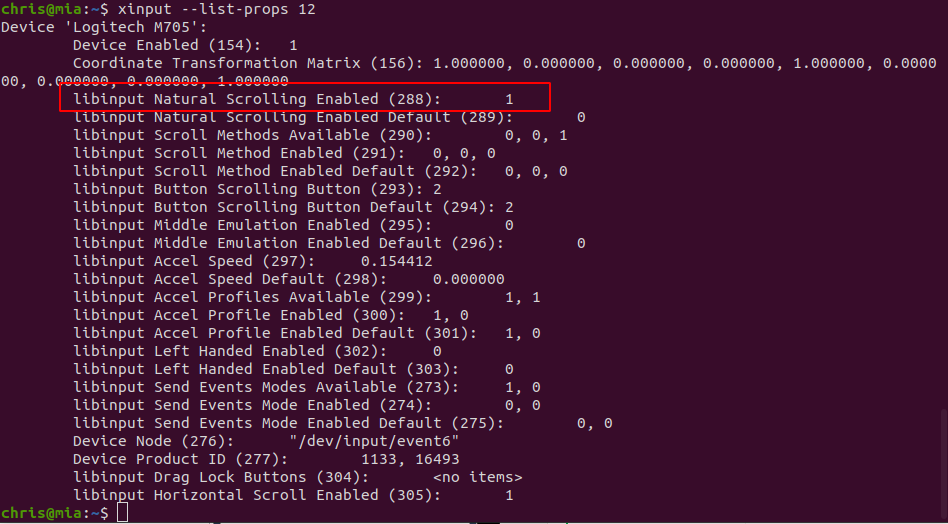
Now I run the command xinput –list-props 12 to show me a detailed list of all options for my Logitech mouse. I notice the option I need to change is, “Natural Scrolling Enabled (288)“. It is set at 1, which means enabled. This is what is causing the backwards scrolling.
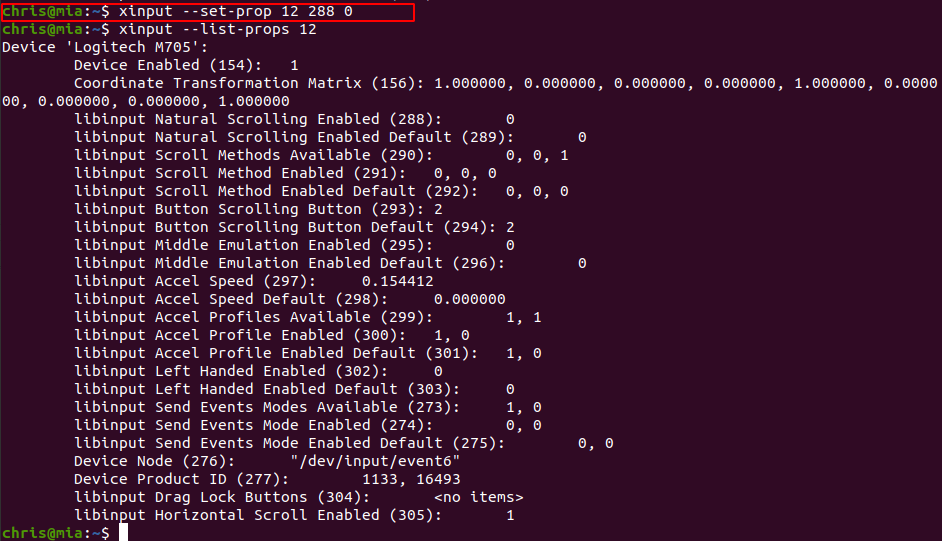
Now I need to disable Natural Scrolling, and change the value to 0. I run the command: xinput –set-prop 12 288 0. I then run xinput –list-props 12 to see that the setting is disabled (Set at zero).
Great! Everything is working except for one thing…. If I log out and sign back in, the mouse-wheel is backwards again. To fix, I add a line at the bottom of my ~/.bashrc file that runs the command: xinput –set-prop 12 288 0. Now it works everytime I sign in.
